
Philips TVs
TV On/Off
Turn the TVs themselves on and off from your phone.
Look for the buttons
⏻ TV Onand⏻ TV Offappear under a screen's other buttons once a manager has switched them on for that TV (Philips TVs only).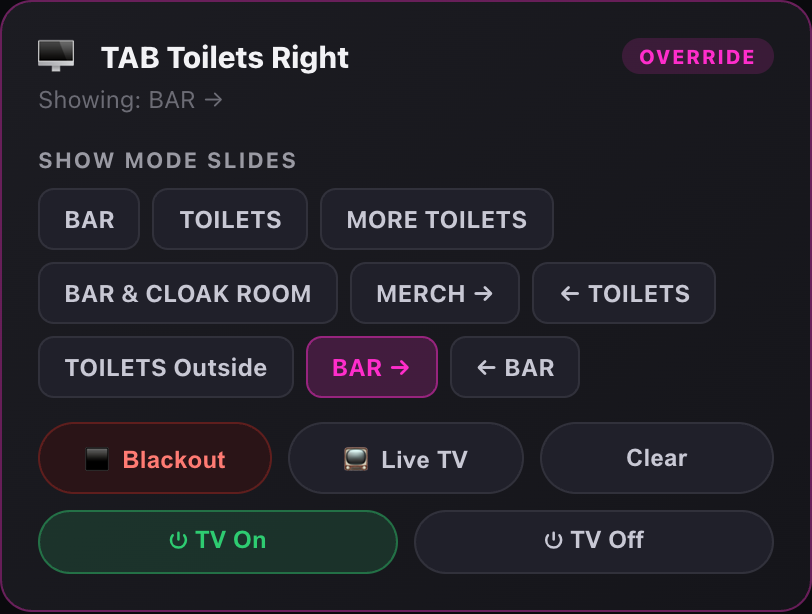
A Philips TV with TV On/Off switched on. Turn a TV off
Tap
⏻ TV Off. The TV goes into standby within about 5 seconds and the card shows a greyTV Offbadge.Turn it back on
Tap
⏻ TV On. The TV wakes within about 5 seconds and goes back to whatever it was showing before: its slide, signage or live TV.All TVs at once
⏻ All TVs Onand⏻ All TVs Offsit in the top bar next to Blackout All. They only affect TVs with On/Off switched on. All TVs Off asks you to confirm first.Good to know
The highlighted button is the last thing Show Remote sent. If someone uses the TV's own remote, Show Remote won't know, so just tap the button you want.
Still stuck?Send us a ticket and the JJJK team will get back to you.
Submit a ticket